
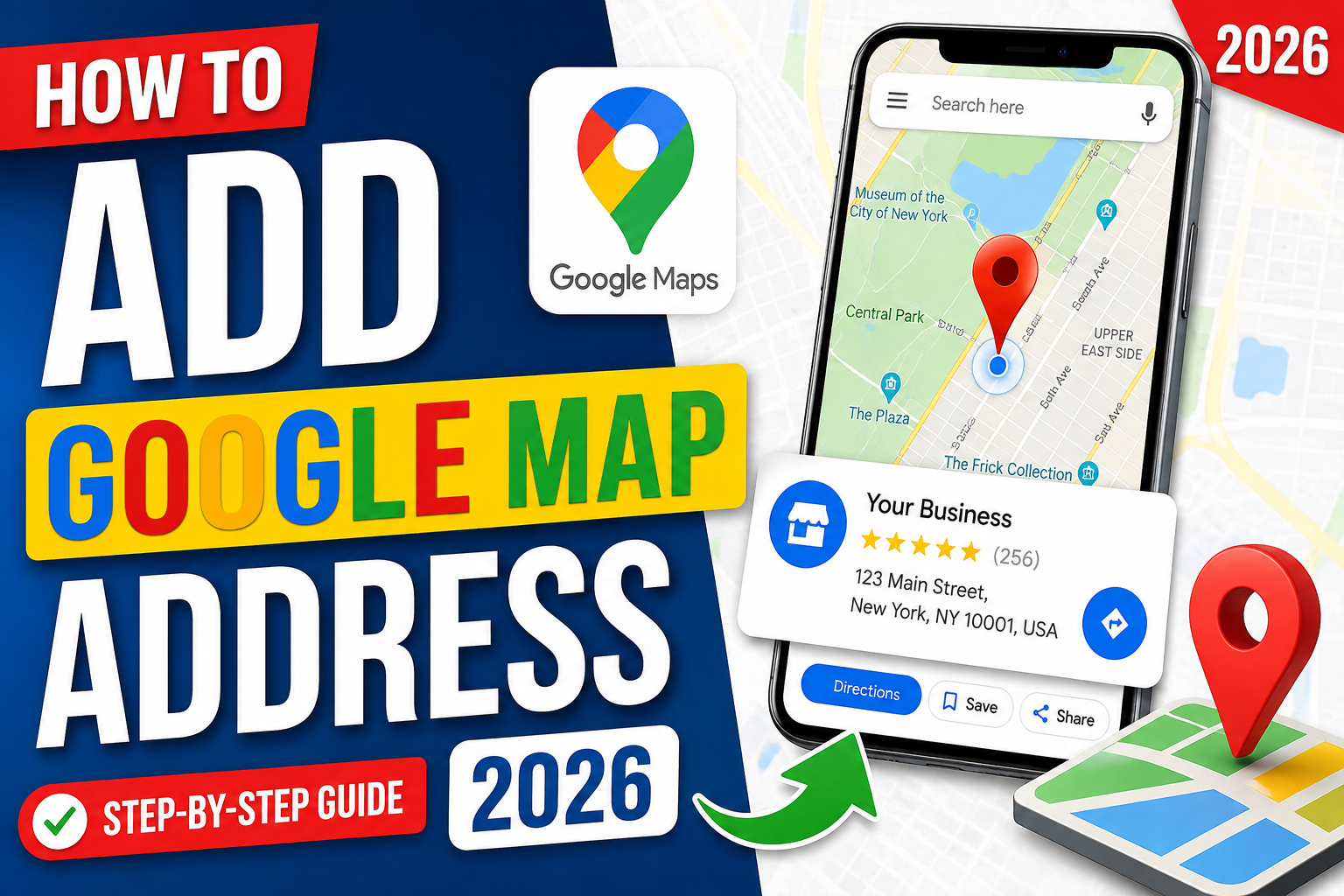
Google Maps has become one of the most important tools for businesses, organizations, and individuals who want to be easily found online. Whether you own a local shop, restaurant, office, clinic, online business with a physical location, or even want to add your home location for customers, Google Maps makes navigation simple.
Adding your address to Google Maps increases your online visibility, improves local SEO, and helps customers find your location quickly. In 2026, the process is easier than ever thanks to the improved Google Business Profile platform.
This detailed guide explains everything you need to know about adding your Google Maps address, verifying your business, editing information, and optimizing your listing for better search rankings.
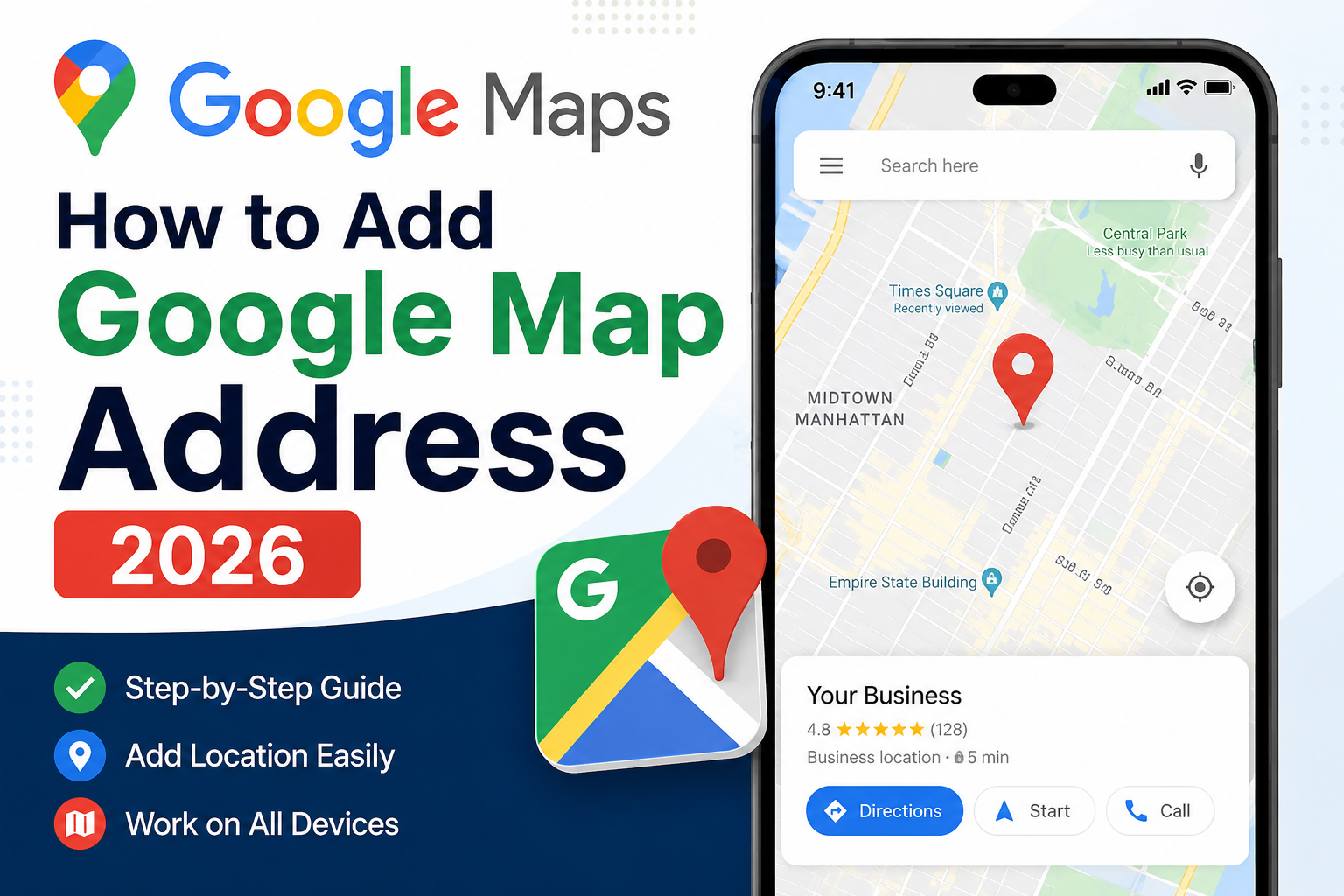
Why Add Your Address to Google Maps?
Adding your address offers many benefits.
1. Improve Local Visibility
When people search for services near them, your business has a chance to appear in Google Search and Google Maps.
Example:
- Restaurant near me
- Car repair shop
- Pharmacy nearby
- Coffee shop
- Mobile repair center
2. Increase Customer Trust
Verified businesses appear more trustworthy.
Customers can see:
- Reviews
- Photos
- Phone number
- Website
- Business hours
- Directions
3. Better Local SEO
Google Maps listings are an important ranking factor for local searches.
A complete profile often performs better than an incomplete listing.
4. Free Marketing
Google Maps listings are completely free.
You can receive:
- Calls
- Website visitors
- Direction requests
- Customer reviews
without paying for advertisements.
What You Need Before You Start
Before adding your address, prepare the following:
- Google Account (Gmail)
- Business Name
- Business Address
- Phone Number
- Website (optional)
- Business Category
- Business Hours
- Business Logo
- Business Photos
Step 1: Sign in to Google Business Profile
Open your web browser.
Go to Google Business Profile.
Sign in using your Google Account.
Step 2: Enter Your Business Name
Click Add Business.
Type your business name.
If your business already exists, Google may suggest it.
Choose the correct listing.
If not available, click:
Create a business with this name.
Step 3: Choose Your Business Category
Categories help Google understand your business.
Examples:
- Restaurant
- Clothing Store
- Hospital
- Grocery Store
- Hotel
- Electronics Store
- Pharmacy
- Digital Marketing Agency
Choose the category that best describes your business.
Step 4: Add Your Business Address
Now enter:
- Country
- Street Address
- City
- Postal Code
- State or Province
Double-check every detail before continuing.
Step 5: Pin Your Location
Google displays a map.
Drag the red pin to your exact business location.
Make sure the pin is placed at the main entrance if possible.
Accurate placement helps customers navigate correctly.
Step 6: Add Contact Information
Enter:
Phone Number
Website
If you don’t have a website, you can skip this step.
Step 7: Verify Your Business
Google requires verification.
Verification methods may include:
- Video verification
- Postcard
- Phone
- Live video
The available method depends on your business type and location.
Step 8: Complete Your Business Profile
After verification, complete every section.
Include:
Business Description
Business Hours
Products
Services
Logo
Cover Photo
Additional Photos
Attributes
Service Areas
Opening Date
Add High-Quality Photos
Businesses with photos generally receive more engagement.
Upload images of:
- Storefront
- Office
- Staff
- Products
- Interior
- Exterior
- Services
Keep photos clear, well-lit, and up to date.
Write a Strong Business Description
A good description should explain:
- What your business does
- Who you serve
- Your specialties
- Your experience
- What makes you different
Avoid keyword stuffing.
Write naturally.
Enable Customer Reviews
Reviews build trust.
Encourage satisfied customers to leave honest reviews.
Always respond professionally to both positive and negative feedback.
Add Business Hours
Include:
- Monday
- Tuesday
- Wednesday
- Thursday
- Friday
- Saturday
- Sunday
Update holiday hours when necessary.
Add Products and Services
You can list:
Products
Services
Pricing
Descriptions
Photos
This provides more information before customers visit.
Optimize Your Google Maps Listing
To rank higher:
Complete Every Field
Incomplete profiles rarely rank well.
Keep Information Updated
Update:
Phone number
Address
Business hours
Website
Services
Upload New Photos Regularly
Fresh images signal that your business is active.
Get More Reviews
More genuine reviews often improve visibility.
Respond to Reviews
Google values businesses that interact with customers.
Add Business Posts
Share:
Offers
Events
News
Announcements
New Products
How to Edit Your Google Maps Address
If you move your business:
- Open Google Business Profile.
- Select your business.
- Click Edit Profile.
- Update your address.
- Save changes.
Google may request verification again.
How to Add a Missing Place on Google Maps
If a place doesn’t exist:
- Open Google Maps.
- Right-click the location.
- Select Add a missing place.
- Fill in the details.
- Submit for review.
Google will review the submission before publishing it.
Common Mistakes to Avoid
Avoid these errors:
- Incorrect address
- Wrong map pin
- Missing phone number
- Low-quality images
- Fake reviews
- Keyword stuffing
- Inconsistent business name
- Outdated business hours
Tips to Rank Higher on Google Maps
- Complete your profile.
- Use accurate business information.
- Choose the right category.
- Add quality photos.
- Collect authentic reviews.
- Respond to customer feedback.
- Keep your profile updated.
- Publish regular business posts.
- Ensure your website includes the same business name, address, and phone number as your profile.
Frequently Asked Questions (FAQs)
Is Google Maps free for businesses?
Yes. Creating and managing a business listing on Google Maps through Google Business Profile is free.
Can I add my home address?
Yes, if your business operates from home. You can also choose to hide your address if you serve customers at their locations instead.
How long does verification take?
The time varies depending on the verification method. Some methods are completed quickly, while others may take several days.
Can I edit my address later?
Yes. You can update your address whenever your business relocates. Google may ask you to verify the new location.
Why is my business not showing on Google Maps?
Common reasons include:
- Verification is still pending.
- Your profile is incomplete.
- The listing is very new.
- Google is reviewing recent changes.
Final Thoughts
Adding your address to Google Maps in 2026 is one of the easiest and most effective ways to improve your online presence. A complete and accurate Google Business Profile helps customers discover your business, trust your brand, and navigate directly to your location. By keeping your information updated, uploading high-quality photos, encouraging genuine customer reviews, and following local SEO best practices, you can maximize the benefits of your Google Maps listing and attract more local customers over time.