

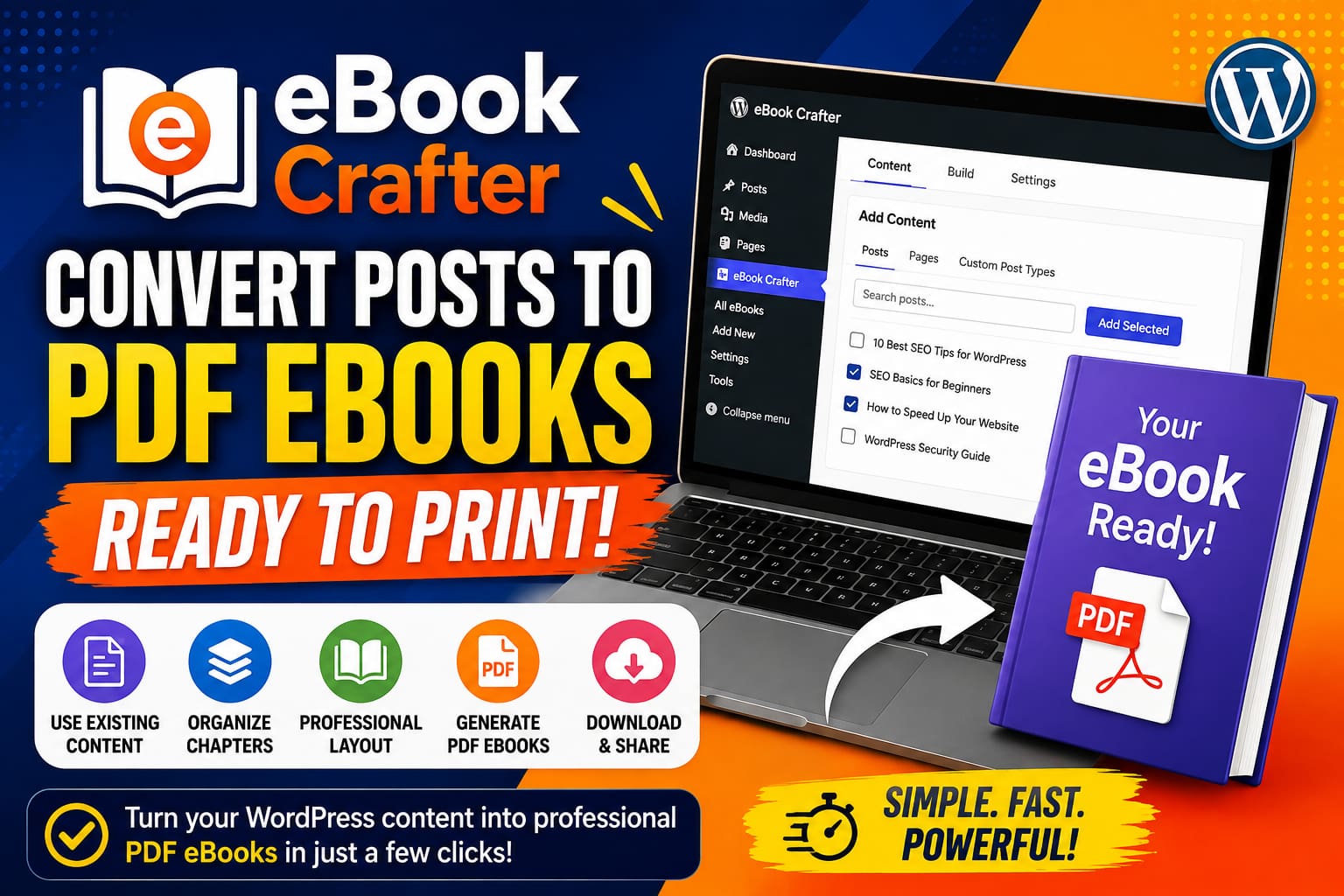
If you already publish articles, tutorials, recipes, guides, or educational content on WordPress, you do not have to leave that content sitting in your archive. eBook Crafter – Convert Posts to PDF eBooks provides a convenient way to collect existing WordPress content, organize it into chapters, edit it with the WordPress Block Editor, and export it as a PDF eBook.
The plugin is designed for bloggers, educators, marketers, photographers, businesses, and other WordPress users who want to repurpose existing content into downloadable or printable books. According to its WordPress.org listing, eBook Crafter can work with posts, pages, and custom post types, while generated PDFs are placed in the WordPress Media Library.
Important: The screenshots referenced below should be taken from your own WordPress dashboard because the exact interface can vary depending on the plugin version, WordPress version, theme, and administrator settings. The official plugin page also provides screenshots showing its Content and Build areas.

What Is eBook Crafter?
eBook Crafter is a WordPress plugin that helps transform existing website content into PDF eBooks without requiring you to manually copy every article into separate desktop publishing software.
Instead of starting a book from an empty document, you can gather content that already exists on your website, arrange it into chapters, make changes in the Block Editor, and generate a PDF.
The plugin currently provides a custom eBook post type together with Book Section, eBook Chapter, and Table of Contents blocks. Its free version uses DOMPDF to generate PDFs locally on your server.
Why Convert Blog Posts Into an eBook?
A successful website can accumulate dozens or hundreds of useful articles. Individual posts may attract visitors for a while and then gradually become less visible.
Combining related articles into an eBook can give that existing content a second purpose.
For example:
- SEO tutorials can become an SEO Beginner’s Guide
- WordPress tutorials can become a WordPress Complete Guide
- Recipes can become a Digital Recipe Book
- Educational lessons can become Course Notes
- Travel articles can become a Travel Guide
- Business articles can become a Lead Magnet
- Photography posts can become a Portfolio Book
This approach can save considerable formatting time because the starting material is already available inside WordPress.
eBook Crafter Main Features
The plugin’s current free feature set includes:
| Feature | What It Does |
|---|---|
| Custom eBook post type | Provides a dedicated area for creating eBooks |
| Book Section block | Helps structure individual sections/pages |
| eBook Chapter block | Adds existing WordPress content as chapters |
| Table of Contents block | Creates an organized contents section |
| PDF generation | Converts the finished eBook into a PDF |
| Media Library storage | Saves generated PDFs inside WordPress |
| PDF version history | Helps manage previously generated versions |
These features are documented in the plugin’s WordPress.org listing.
Requirements Before Installing eBook Crafter
Before installation, check your WordPress environment.
The current WordPress.org listing states that eBook Crafter requires:
- WordPress 6.3 or higher
- PHP 8.1 or higher
The listing currently identifies version 1.0.0 and indicates that it has been tested up to WordPress 7.0.2. Because plugin compatibility can change with future releases, check the plugin page before installation.
How to Install eBook Crafter in WordPress
Installing the plugin is similar to installing other WordPress plugins.
Step 1: Log In to WordPress
Open your WordPress administration area and sign in with an administrator account.
Go to:
Dashboard → Plugins → Add New Plugin
Then search for:
eBook Crafter – Convert Posts to PDF eBooks
The plugin is published by Naweed Chougle and is available through the WordPress plugin directory.
Screenshot 1: Search for eBook Crafter
Suggested screenshot: Capture the WordPress Plugins → Add New Plugin screen showing the search box and the eBook Crafter plugin result.
Recommended image alt text:Search for eBook Crafter PDF eBook plugin in WordPress
Step 2: Install the Plugin
When you find eBook Crafter, click:
Install Now
Wait for WordPress to complete the installation.
After installation finishes, the button will change to:
Activate
Click it.
Screenshot 2: Install and Activate eBook Crafter
Suggested screenshot: Capture the plugin card immediately after installation, showing the Activate button.
Alt text:Install and activate eBook Crafter WordPress plugin
Step 3: Open eBook Crafter
After activation, look at the WordPress administration menu.
The plugin adds an eBook-related management area where you can begin creating your first book.
The official installation instructions state that users can activate the plugin through the Plugins screen and then open eBook Crafter from the WordPress admin menu.
Screenshot 3: eBook Crafter Dashboard
Suggested screenshot: Show the WordPress admin sidebar with the eBook Crafter menu highlighted.
Alt text:eBook Crafter menu inside the WordPress dashboard
Step 4: Create Your First eBook
Once the plugin is active, start a new eBook project.
Give your eBook a clear title.
For example:
Complete WordPress SEO Guide for Beginners
A good title makes the purpose of the book immediately understandable.
You can create books around a single subject rather than combining unrelated posts.
Good Content Grouping Examples
Book 1: WordPress Beginner’s Guide
Book 2: Complete SEO Guide
Book 3: Blogging and Content Marketing Guide
Book 4: WordPress Speed Optimization
Book 5: AI Tools for Digital Marketing
Keeping each book focused makes the final PDF easier to read.
Step 5: Add Existing WordPress Posts
One of the most useful features of eBook Crafter is the ability to use content that is already stored in WordPress.
The plugin supports:
- Posts
- Pages
- Custom post types
This means websites using custom content types for courses, recipes, portfolios, lessons, or other material can potentially use that information as chapters.
Search for the articles you want to include and add the relevant content to your eBook.
Screenshot 4: Adding Content to the eBook
Suggested screenshot: Show the eBook Content area where existing WordPress content is selected or added.
Alt text:Adding WordPress posts to an eBook with eBook Crafter
Step 6: Organize Your Chapters
After adding your posts, arrange them in a logical order.
For example, a WordPress eBook could use this structure:
- Introduction
- What Is WordPress?
- WordPress Installation
- Choosing a Theme
- Installing Plugins
- Creating Pages
- Publishing Posts
- WordPress SEO
- Website Security
- Website Speed
- Backup and Maintenance
- Conclusion
The Chapter block is designed to help connect existing WordPress content to your eBook and arrange chapters in the desired sequence.
Screenshot 5: Reordering Chapters
Suggested screenshot: Capture the eBook editor showing multiple chapters arranged in order.
Alt text:Organizing WordPress posts into eBook chapters
Step 7: Create a Cover Page
A professional eBook should begin with a clear cover.
Include information such as:
- Book title
- Subtitle
- Author or website name
- Publication year
- Optional website URL
- Relevant image or graphic
Avoid overcrowding the cover. A simple design is usually easier to read.
For example:
Complete WordPress Guide
From Beginner to Advanced
By AI Landmark Solution
The plugin’s Book Section functionality is designed to support different page types, including cover, table of contents, and chapter sections.
Step 8: Add a Table of Contents
A Table of Contents helps readers navigate a longer PDF.
eBook Crafter provides a dedicated Table of Contents block. The plugin’s development documentation explains that the TOC can work with headings and page-number information.
A simple structure might look like:
Table of Contents
- Introduction — 1
- WordPress Basics — 4
- Installing Plugins — 10
- Creating Pages — 16
- SEO Optimization — 24
- Speed Optimization — 34
- Security — 42
- Conclusion — 50
Screenshot 6: Table of Contents
Suggested screenshot: Show the Table of Contents block inside the WordPress Block Editor.
Alt text:Table of Contents block in eBook Crafter WordPress
Step 9: Edit the Imported Content
Do not assume that your existing blog posts are automatically perfect for a book.
An article written for a website may contain:
- Internal links
- Website navigation references
- Calls to comment
- Promotional sections
- Outdated statistics
- Web-only buttons
- Repeated introductions
- References to other blog posts
Before generating your eBook, review every chapter.
You can rewrite introductions, remove unnecessary website elements, update old information, and make the chapters flow naturally.
This is one of the biggest advantages of repurposing content rather than simply exporting it without editing.
Step 10: Format the eBook
Use the WordPress Block Editor to improve the presentation.
Pay attention to:
Headings
Use a consistent hierarchy:
- H1 for the book title
- H2 for major sections
- H3 for subsections
Paragraphs
Keep paragraphs reasonably short so the PDF remains comfortable to read.
Images
Use high-quality images that remain clear when printed.
Lists
Use bullet points and numbered lists where they make information easier to scan.
Links
Review hyperlinks before exporting. A website article may contain links that make sense online but are unnecessary in a printable book.
Step 11: Review Each Page
Before exporting the PDF, inspect the complete book.
Look for:
- Large empty spaces
- Headings at the bottom of pages
- Images that are too large
- Broken formatting
- Missing images
- Incorrect chapter order
- Spelling mistakes
- Outdated information
- Repeated content
- Incorrect page references
A few minutes of proofreading can make a major difference to the final product.
Step 12: Build the PDF
When your content is ready, use the plugin’s Build functionality to generate the PDF.
The plugin’s current free version uses DOMPDF for local PDF generation. Generated PDFs are placed in the WordPress Media Library.
Screenshot 7: Build Tab
Suggested screenshot: Capture the eBook Crafter Build section before generating the PDF.
Alt text:eBook Crafter Build tab for generating a WordPress PDF eBook
The official plugin listing identifies the Content and Build areas as part of the plugin interface.
Step 13: Download the Finished PDF
After the PDF has been generated, it can be managed from your WordPress Media Library.
Go to:
Dashboard → Media → Library
Find the generated eBook PDF.
From there, you can use the file for different purposes depending on your website strategy.
Screenshot 8: Generated PDF in Media Library
Suggested screenshot: Show the generated PDF file inside the WordPress Media Library.
Alt text:Generated eBook PDF saved in WordPress Media Library
How to Use Your New PDF eBook
Creating the PDF is only the first step. You can use it in several ways.
1. Offer It as a Free Download
Create a download page and provide the PDF as a resource for visitors.
This works especially well for:
- Tutorials
- Checklists
- Guides
- Educational material
- Industry reports
2. Use It as a Lead Magnet
You can offer the eBook in exchange for an email address.
For example:
Download Our Free WordPress SEO Guide
Enter your email address to receive the complete PDF.
3. Sell the eBook
Because the generated PDF is stored in your Media Library, it can be incorporated into a digital-product workflow.
The plugin documentation specifically notes that generated PDFs can be sold through systems such as WooCommerce or Easy Digital Downloads.
4. Create a Members-Only Resource
You can also place the PDF behind a membership system so that only registered users can access it.
5. Print the Book
A PDF can also be used as a printable version of your online content.
Before commercial printing, however, carefully check page size, margins, fonts, images, page breaks, and overall output quality.
Free Version vs Pro
The free plugin provides the core workflow needed to create PDF eBooks.
The current documentation says the free version uses DOMPDF, while the separate Pro plugin adds higher-fidelity rendering through Prince, templates, custom fonts, automatic page-number handling in the table of contents, accessibility-related PDF capabilities, and priority support.
| Feature | Free | Pro |
|---|---|---|
| Create eBooks | Yes | Yes |
| WordPress posts/pages | Yes | Yes |
| Custom post types | Yes | Yes |
| Block Editor workflow | Yes | Yes |
| PDF generation | Yes | Yes |
| DOMPDF rendering | Yes | — |
| Advanced Prince rendering | No | Yes |
| Pre-made templates | No | Yes |
| Custom fonts | No | Yes |
| Advanced PDF accessibility | No | Yes |
| Priority support | No | Yes |
Always check the plugin’s current documentation before purchasing Pro because features and pricing can change.
Is eBook Crafter Easy for Beginners?
Yes, particularly if you are already familiar with WordPress and Gutenberg.
The workflow is straightforward:
Existing Content → Select Articles → Arrange Chapters → Edit → Add TOC → Build → PDF
The major advantage is that you don’t have to manually copy every article into a separate document.
For a blogger who already has a large WordPress archive, this can make content repurposing much more practical.
Best Practices for Creating a Professional eBook
Keep One Main Topic
Avoid combining unrelated articles.
Instead of creating a book containing SEO, recipes, travel, WordPress, and finance, create separate focused books.
Update Old Posts
An eBook gives you an excellent reason to review old content.
Update:
- Statistics
- Screenshots
- Software versions
- Examples
- Links
- Instructions
Remove Web-Only Elements
Consider removing:
- Sidebar references
- Comment requests
- Website navigation instructions
- Unnecessary advertisements
- Repeated newsletter boxes
Add an Introduction
Tell readers what they will learn and who the book is for.
Add a Conclusion
End the book with a short summary and useful next steps.
Include Your Branding
Add your website name, author information, or brand identity in appropriate places.
Proofread Before Publishing
Never publish the first PDF without reviewing it.
Common Problems and Solutions
PDF Looks Different From the Editor
PDF rendering can differ from the WordPress editing screen.
Solution: Generate a test PDF and inspect the output before distributing it.
Images Are Not Positioned Correctly
Large or unusual images may affect page layout.
Solution: Resize and optimize images before exporting.
Content Appears Out of Order
This may happen if chapters were not organized carefully.
Solution: Return to the eBook editor and review the chapter sequence.
Table of Contents Needs Adjustment
Review the headings and page numbers after generating the book.
Solution: Check the TOC and make corrections before releasing the final version.
PDF Generation Fails
Large books can require more server resources.
Solution: Check your WordPress/PHP environment, reduce unnecessarily large images, and make sure the required PHP version is available.
Privacy and External Services
The plugin documentation says that PDF generation is performed locally using the server-side PDF engine. It also explains that when the book contains emoji, the plugin can request Twemoji images from jsDelivr during PDF generation because DOMPDF cannot directly render system emoji glyphs.
According to the plugin’s documentation, this request contains emoji-related information and normal HTTP metadata rather than the user’s personal content or account information.
If privacy is important for your website, review the plugin’s current external-services documentation before publishing your own privacy policy.
Who Should Use eBook Crafter?
eBook Crafter can be particularly useful for:
Bloggers
Turn a collection of related posts into a downloadable guide.
SEO Professionals
Combine tutorials and case studies into an SEO resource.
Teachers
Turn online lessons into course packs.
Coaches and Consultants
Create downloadable knowledge products.
Marketers
Build lead magnets from existing educational content.
Photographers
Create organized portfolios from existing website content.
Small Businesses
Turn helpful blog content into customer guides.
The plugin’s official description lists use cases ranging from travel and recipes to marketing, education, photography, and business content.
Frequently Asked Questions
Can eBook Crafter convert WordPress posts into PDF?
Yes. Its primary purpose is to collect WordPress content and turn it into PDF eBooks.
Can I use pages?
Yes. The plugin supports posts, pages, and custom post types.
Does it work with custom post types?
Yes. Custom post types can be incorporated as chapters, making the plugin useful for websites with specialized content structures.
Where are generated PDFs stored?
Finished PDFs are automatically added to the WordPress Media Library.
Can I sell the PDF?
Yes. The plugin documentation states that the generated PDF can be used with digital-product and membership workflows, including WooCommerce and Easy Digital Downloads.
Does the free version require an API key?
The plugin documentation says the PDF generation is local and does not require an account or API key for the core process.
What WordPress version is required?
The current plugin listing specifies WordPress 6.3 or higher and PHP 8.1 or higher.
Final Thoughts
eBook Crafter – Convert Posts to PDF eBooks is a useful option for WordPress users who want to transform existing website content into downloadable PDF books without rebuilding everything from scratch.
Its workflow is simple: collect existing posts or other supported content, organize them into chapters, edit the material in the Block Editor, add a cover and table of contents, and generate the PDF.
For bloggers and website owners with a large archive, the biggest benefit is content repurposing. Instead of allowing valuable articles to disappear into an old-post archive, you can combine related information into a resource that can be downloaded, printed, used as a lead magnet, or incorporated into a digital-product strategy.
Before publishing your eBook, always test the final PDF carefully and verify that your WordPress and PHP versions meet the plugin’s current requirements.
Official reference: The current eBook Crafter documentation and plugin information are available through the WordPress plugin directory.
Screenshot Checklist for This Tutorial
For a complete screenshot-based version of this article, capture these eight screens from your own WordPress dashboard:
- Plugins → Add New Plugin — searching for eBook Crafter
- Plugin installation — Install/Activate button
- WordPress Dashboard — eBook Crafter menu
- Content tab — adding existing posts
- Chapter editor — arranging chapters
- Table of Contents — adding the TOC block
- Build tab — generating the PDF
- Media Library — finished PDF
This approach gives readers authentic screenshots from the actual WordPress installation rather than generic images, making the tutorial easier to follow.


