

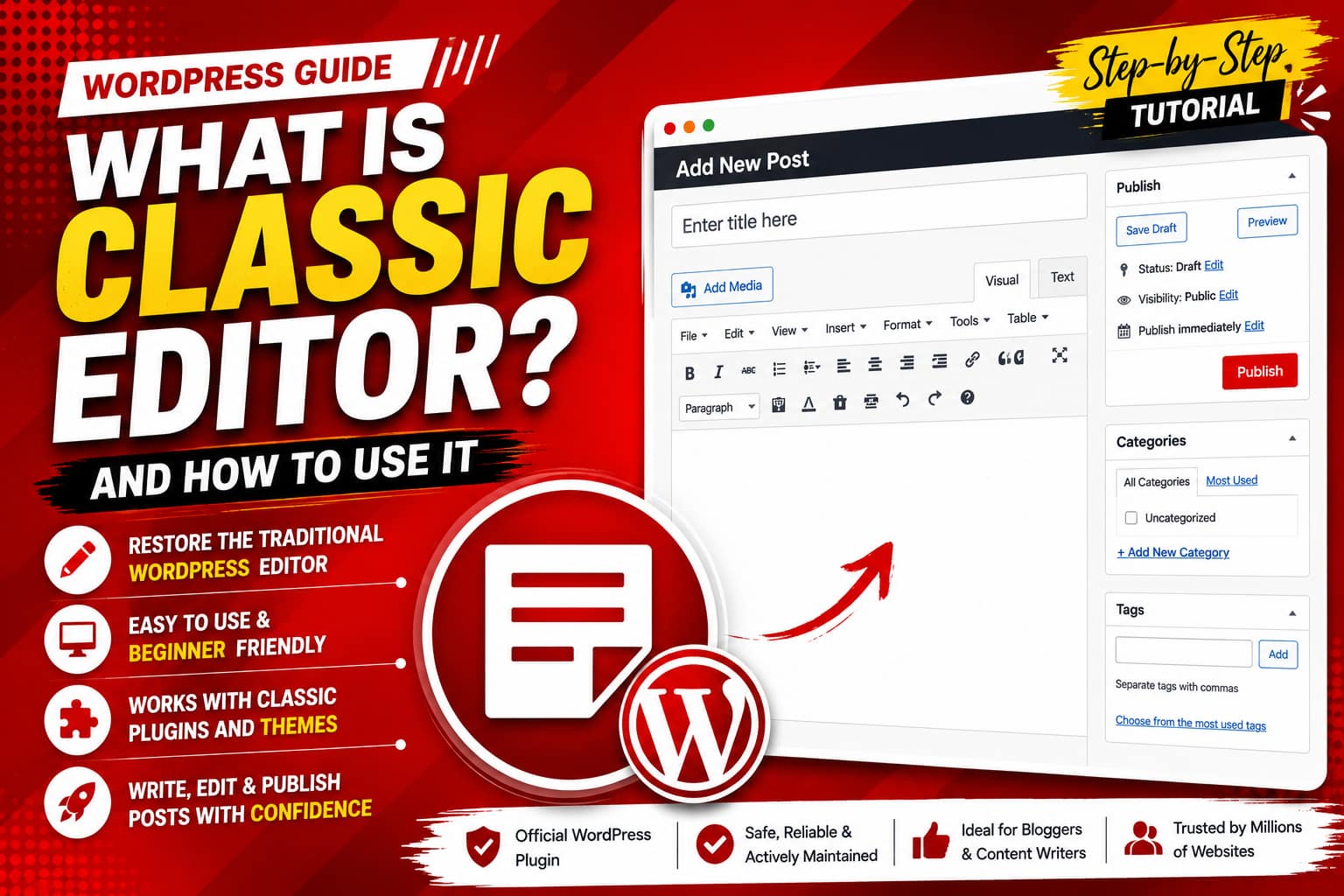
If you have used WordPress for several years, you may remember the traditional editor where you could write content in a simple, familiar text area with formatting buttons at the top. That interface is known as the Classic Editor.
The Classic Editor is an official WordPress plugin maintained by the WordPress project. It restores the traditional WordPress editing experience and the older-style Edit Post screen. It can also be useful for websites that rely on older plugins, meta boxes, or workflows designed around the classic editing interface. (WordPress.org)
In this guide, you will learn what Classic Editor is, why people use it, how to install and activate it, how to create posts and pages, how to add images and links, how to publish content, and how to switch between the Classic Editor and WordPress Block Editor.
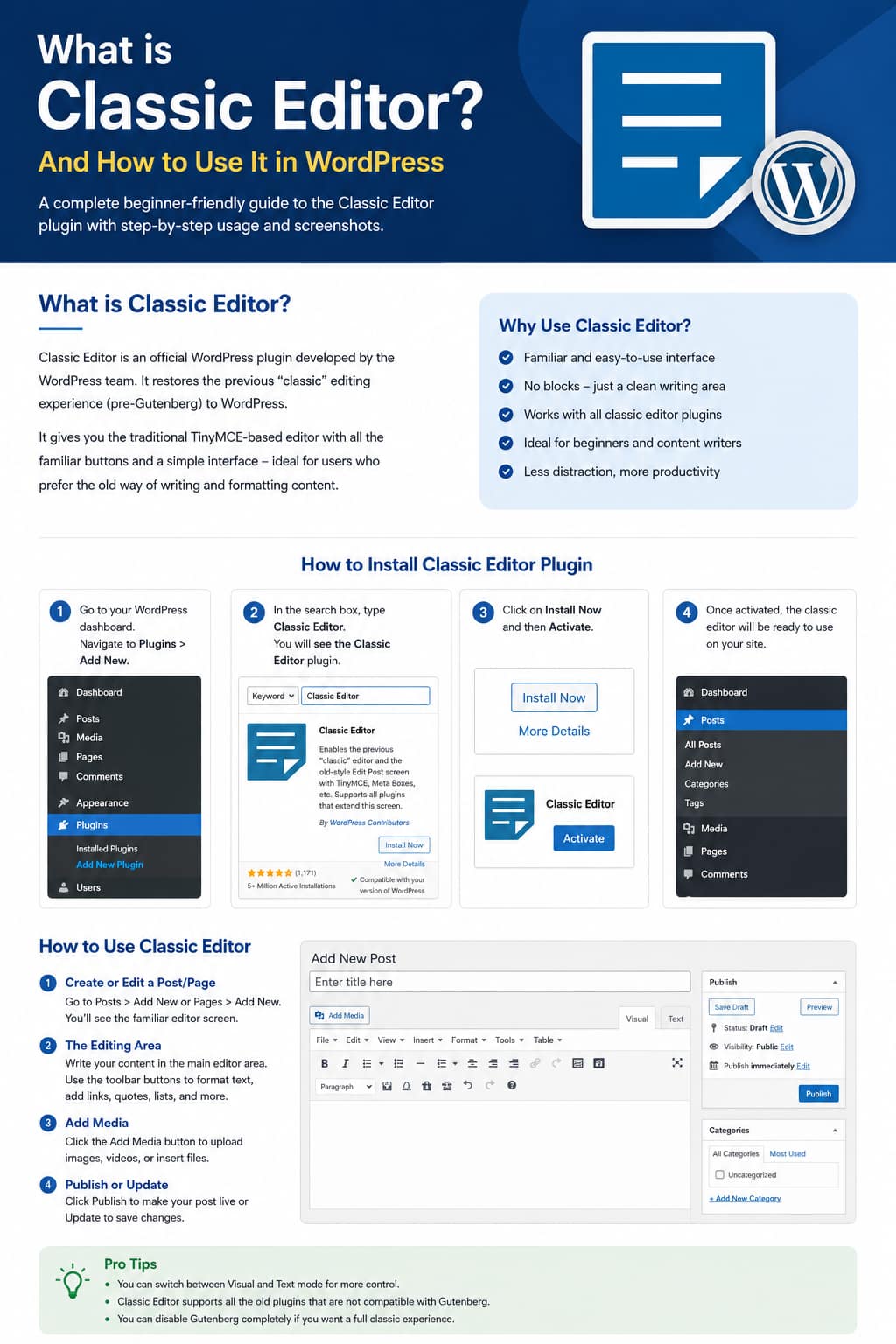
What Is Classic Editor?
Classic Editor is a WordPress plugin that brings back the traditional editor that was used before the introduction of the Gutenberg/Block Editor.
Instead of building a page from individual blocks, Classic Editor provides a familiar writing interface similar to a basic word processor.
With it, you can:
- Write blog posts and pages
- Format text
- Add headings
- Create lists
- Insert links
- Upload images
- Add media
- Insert HTML
- Add categories and tags
- Save drafts
- Preview content
- Publish or update posts
- Work with older plugins that depend on the traditional editing screen
The plugin can also allow administrators to choose the default editor for users and, when enabled, let users switch between the Classic Editor and Block Editor. (WordPress.org)
Classic Editor vs. Block Editor
WordPress introduced the Block Editor in WordPress 5.0. The modern editor is designed around blocks, while Classic Editor provides the older editing workflow.
| Feature | Classic Editor | Block Editor |
|---|---|---|
| Writing interface | Traditional | Block-based |
| Learning curve | Easy for traditional WordPress users | Requires learning blocks |
| Text editing | Simple | Block-based |
| Page layouts | Limited | Flexible |
| Legacy plugin compatibility | Often better | Depends on plugin |
| Modern design features | Limited | Extensive |
| Best suited for | Traditional blogs and legacy workflows | Modern WordPress websites |
The modern Block Editor is actively developed and offers more layout flexibility, while Classic Editor remains useful for users who prefer the traditional workflow. WordPress.com currently describes the Classic Editor as a legacy editing experience and recommends the modern editor for new projects. (WordPress.com)
Why Do People Use Classic Editor?
There are several reasons website owners continue to use Classic Editor.
1. Familiar Interface
If you started using WordPress before Gutenberg, the Classic Editor may feel much more comfortable.
Instead of learning blocks, you can simply click inside the editor and start writing.
2. Simple Content Creation
For ordinary blog posts containing text, headings, links and images, the Classic Editor provides a straightforward workflow.
3. Legacy Plugin Compatibility
Some older WordPress plugins were designed to add buttons, fields, shortcodes or meta boxes to the traditional editing screen. Classic Editor can restore that environment. (WordPress.org)
4. Easier for Some Beginners
Users who want a simple writing interface may find the traditional editor easier to understand than a block-based interface.
5. Existing Website Workflows
Businesses and content teams that have built processes around the old editor may prefer to keep their existing workflow instead of changing how every post is created.
How to Install Classic Editor in WordPress
Installing Classic Editor is similar to installing other WordPress plugins.
Step 1: Open Your WordPress Dashboard
Log in to your WordPress website.
Your dashboard normally looks similar to:
Dashboard → Plugins → Add New Plugin
Step 2: Search for Classic Editor
In the plugin search box, type:
Classic Editor
Make sure you select the official Classic Editor plugin maintained by WordPress.


Step 3: Install the Plugin
Click Install Now.
Wait for WordPress to complete the installation.
Step 4: Activate Classic Editor
After installation, click Activate.
Once activated, Classic Editor can become the default editor depending on your site’s editor settings. WordPress’s current documentation says that on plugin-enabled sites, activating Classic Editor makes new posts and pages open in the Classic Editor by default, subject to the Writing settings. (WordPress.com)
Configure Classic Editor Settings
After activation, go to:
Settings → Writing
Look for the Classic Editor settings.
Depending on your WordPress installation, you may see options such as:
Default editor for all users
You can choose which editor should be used as the default.
For a Classic Editor workflow, select:
Classic Editor
Allow users to switch editors
This option determines whether users can switch between the Classic Editor and Block Editor.
If you manage a website with multiple authors, allowing users to choose their preferred editor can be useful.
The official plugin supports administrator control over the default editor and can allow individual users to switch editors. (WordPress.org)


How to Create a New Post With Classic Editor
After activating the plugin, creating a post is simple.
Go to:
Posts → Add New
You will see the traditional editing screen.
1. Add the Post Title
At the top of the page, enter your article title.
For example:
How to Install WordPress Plugins: Complete Beginner’s Guide
2. Write Your Content
Click inside the large editor area and begin writing.
You can enter:
- Paragraphs
- Headings
- Lists
- Quotes
- Links
- Images
- Shortcodes
- HTML
The Classic Editor provides Visual and Text editing modes. The Visual mode is generally easier for beginners, while Text mode allows you to work directly with HTML. (WordPress.com)


Understanding the Classic Editor Toolbar
The toolbar contains buttons for common formatting operations.
Some commonly used controls include:
Bold
Select text and click B to make it bold.
Example:
Important WordPress tip
Italic
Select text and click I to make it italic.
Lists
You can create:
- Unordered lists
- Numbered lists
Alignment
You can align content to the left, center or right.
Insert/Edit Link
Select text and click the link button to add a URL.
Blockquote
The quotation tool can be used to visually separate quoted text.
Remove Formatting
If copied text contains unwanted formatting, the clear-formatting option can help remove it.
WordPress documentation explains that the Classic Editor includes formatting controls, alignment, styles, text color, special characters, indentation and other editing functions. (WordPress.com)
How to Add an Image
Images are important for blog posts because they can make long articles easier to understand.
To add an image:
- Open your post.
- Place the cursor where you want the image.
- Click Add Media.
- Upload a new image or select an existing image from the Media Library.
- Choose the image.
- Click Insert into post.
You can then adjust the image alignment, size and other available settings.
SEO Tip
Always add meaningful Alt Text to images.
For example:
Alt text: Classic Editor WordPress post editing screen
Avoid using meaningless alt text such as:
image123.jpg
How to Add a Link
Adding internal and external links is easy.
Step-by-step
- Highlight the text.
- Click the Insert/Edit Link button.
- Enter the destination URL.
- Apply the link.
For example:
Learn more about WordPress plugins.
You can link the phrase WordPress plugins to a relevant page on your website.
Internal links can help visitors discover related articles and can also make your website structure easier for search engines to understand.
How to Add Headings
Headings make articles easier to read.
In Classic Editor, you can use the formatting dropdown to select heading levels such as:
- Heading 2
- Heading 3
- Heading 4
For example:
H2: How to Install Classic Editor
H3: Activate the Plugin
H3: Configure the Settings
Avoid using headings simply because they look larger. Use them to create a logical content structure.
How to Add Categories and Tags
On the right side of the Classic Editor screen, you will usually find the Categories and Tags sections.
Categories
Categories organize your content into broad topics.
For example:
WordPress
Tags
Tags can describe more specific subjects.
Example:
- Classic Editor
- WordPress plugins
- WordPress tutorial
- Gutenberg
- WordPress editor
Use categories consistently and avoid creating dozens of unnecessary tags.
How to Save a Draft
You don’t have to publish your article immediately.
Click:
Save Draft
This saves your work so you can continue editing later.
This is particularly useful when writing long tutorials.
How to Preview a Post
Before publishing, click:
Preview
This allows you to check how the article appears on the website.
Look for:
- Incorrect spacing
- Broken links
- Missing images
- Formatting problems
- Incorrect headings
- Mobile display issues
- Typos
Previewing before publishing can prevent simple mistakes from reaching your visitors.
How to Publish a Post
When your article is complete:
- Add the title.
- Write the content.
- Add images.
- Select a category.
- Add relevant tags.
- Check the featured image if your theme uses one.
- Preview the article.
- Proofread the content.
- Click Publish.
Your article will then become publicly available according to your site’s publishing settings.
WordPress’s classic-editor documentation describes the basic workflow as entering the title and content, selecting categories/tags and then publishing when the post is ready. (WordPress.org)
How to Edit an Existing Post
To edit an existing article:
Posts → All Posts
Find the article you want to modify.
Click its title or the appropriate editing link.
If Classic Editor is configured as your site’s editor, the post can open in the traditional editing interface.
You can then change:
- Title
- Text
- Images
- Links
- Categories
- Tags
- Featured image
- Publishing settings
Click Update after making changes.
Visual Mode vs. Text Mode
Classic Editor provides two important editing views.
Visual Mode
Visual mode is best for most users.
It displays content in a format closer to how the final article will look.
Use it for:
- Writing
- Formatting
- Adding links
- Adding images
- Creating lists
Text Mode
Text mode lets you work with HTML.
For example:
<p>This is a paragraph.</p>
This mode is useful for experienced WordPress users who need more control over HTML or certain legacy content.
If you are unfamiliar with HTML, Visual mode is usually the safer option.
Can You Switch Between Classic Editor and Block Editor?
Yes, if switching has been enabled.
The Classic Editor plugin can allow users to use either editor. When the option is enabled, WordPress can provide links for switching between the two editing experiences. (WordPress.org)
However, be careful when switching content between editors.
Posts containing complex blocks, custom HTML, shortcodes or third-party plugin output may not always behave exactly as expected when converted.
WordPress documentation notes that classic content opened in the Block Editor can appear inside a Classic block, which can then be converted into individual blocks or HTML. (WordPress.com)
For important existing posts, create a backup before making major editor conversions.
Important Limitation: Block Themes
Classic Editor is primarily designed for the traditional editing workflow.
The official plugin documentation states that it does not work with full site editing and block themes in the same way, because block themes rely on blocks. (WordPress.org)
Therefore, before choosing Classic Editor for an entire website, check whether your theme and plugins are compatible with the workflow you want.
Advantages of Classic Editor
Simple Interface
The interface is familiar and straightforward.
Easy Content Writing
You can write articles without managing individual blocks.
Traditional Workflow
It works similarly to older WordPress versions.
Legacy Compatibility
It can be useful for websites that depend on plugins or editing features designed for the older editor.
Good for Traditional Blogs
If your website mainly publishes text-based articles, Classic Editor may provide everything you need.
Disadvantages of Classic Editor
Classic Editor also has limitations.
Fewer Modern Layout Tools
The Block Editor provides more modern layout and design capabilities.
Less Flexible Page Building
Complex page layouts are generally easier to create using blocks or specialized page-building tools.
Legacy Technology
Classic Editor represents the older WordPress editing experience rather than the direction of modern WordPress development.
Not Ideal for Block-Based Workflows
If your website is built around block themes and modern block features, Classic Editor may not be the best choice.
WordPress currently recommends its modern editor for new workflows because it provides broader layout and site-building capabilities. (WordPress.com)
Who Should Use Classic Editor?
Classic Editor can be a practical choice for:
- Traditional bloggers
- Website owners familiar with older WordPress
- Content writers who prefer a simple editor
- Sites using legacy plugins
- Businesses with established Classic Editor workflows
- Administrators maintaining older WordPress websites
It may be less suitable for websites that depend heavily on block-based layouts, patterns and full-site editing.
Classic Editor Best Practices
If you decide to use Classic Editor, follow these tips:
Keep WordPress Updated
Using an older editing interface does not mean you should stop updating WordPress.
Keep WordPress, themes and plugins updated and maintain regular backups.
Test Plugins
Before installing a plugin on a production website, check whether it works correctly with your editing workflow.
Backup Before Major Changes
Always create a backup before changing editors or converting large numbers of posts.
Use Visual Mode Carefully
Visual mode is convenient, but check the published page rather than assuming the editor view is identical to the final website.
Don’t Switch Editors Unnecessarily
If an existing post contains complicated formatting or custom functionality, avoid repeatedly switching between Classic Editor and Block Editor.
Frequently Asked Questions
Is Classic Editor free?
Yes. Classic Editor is available as an official WordPress plugin. (WordPress.org)
Is Classic Editor an official WordPress plugin?
Yes. It is maintained by the WordPress project. (WordPress.org)
Can I use Classic Editor for pages?
Yes. Classic Editor can be used for both posts and pages, depending on your site’s configuration.
Can I switch back to Gutenberg?
Yes, if the administrator has enabled editor switching. Otherwise, the site administrator may need to change the editor settings. (WordPress.org)
Is Classic Editor better than Gutenberg?
Neither is universally better. Classic Editor is simpler and more familiar for traditional content workflows, while the Block Editor provides significantly more flexibility for modern layouts and site building.
Does Classic Editor work with every WordPress theme?
No. Compatibility depends on the theme and its architecture. In particular, block themes and full-site-editing workflows are designed around blocks. (WordPress.org)
Can beginners use Classic Editor?
Yes. Its traditional interface can be easier for beginners who want a simple writing environment.
Final Thoughts
Classic Editor is a WordPress plugin that restores the traditional WordPress editing experience. It is especially useful for website owners who prefer a straightforward writing interface or need compatibility with older editing workflows.
Installing it is simple: go to Plugins → Add New, search for Classic Editor, install it and activate it. You can then configure the default editor under Settings → Writing.
For a simple blog that mainly publishes articles, the Classic Editor can still be a comfortable and productive option. However, for new websites that require modern layouts, block patterns and full-site editing, the current WordPress Block Editor generally provides more flexibility. (WordPress.com)
Official resources: Classic Editor on WordPress.org and WordPress Classic Editor documentation
Image Guide for This Article
Use the generated tutorial infographic near the beginning of the article as the main visual guide. For the detailed sections, add screenshots showing:
- Plugins → Add New
- Classic Editor search result
- Install Now / Activate
- Settings → Writing
- Classic Editor post editor
- Add Media window
- Visual and Text tabs
- Publish/Update panel
These screenshots will make the tutorial easier for beginners to follow.