
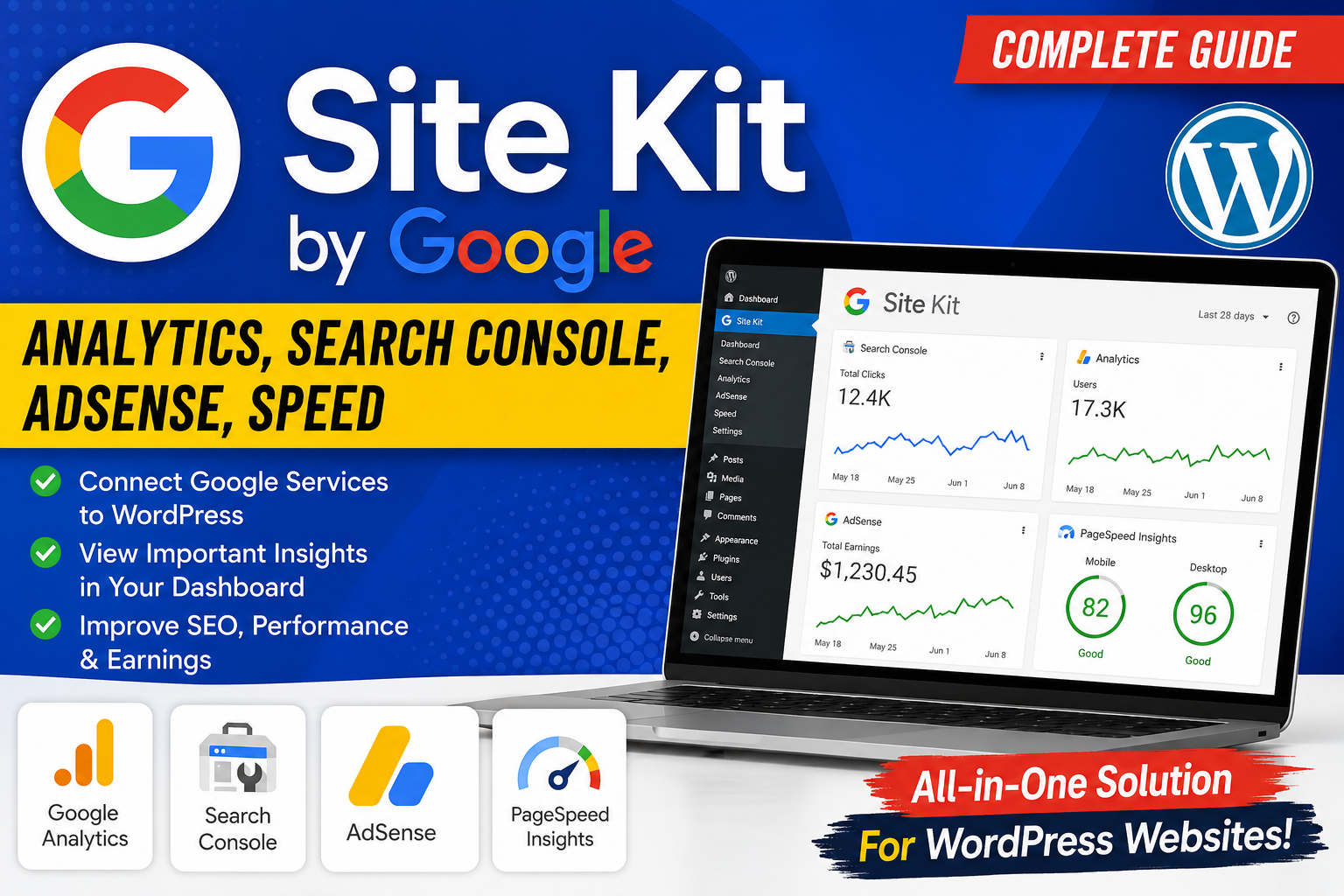
If you manage a WordPress website, you probably use several Google services to understand traffic, improve SEO, monitor website speed, and earn money from advertisements. Normally, you have to open Google Search Console, Google Analytics, AdSense, and PageSpeed Insights separately.
Site Kit by Google makes this process much easier by bringing important information from Google services directly into your WordPress dashboard.
Site Kit is Google’s official WordPress plugin and is available free of charge. It can connect your WordPress website with services such as Google Search Console, Google Analytics, Google AdSense, PageSpeed Insights, Google Tag Manager, Google Ads, and other supported Google products.
This guide explains what Site Kit is, how to install it, how to connect Google services, how to read the dashboard, and how beginners can use it effectively.
What Is Site Kit by Google?
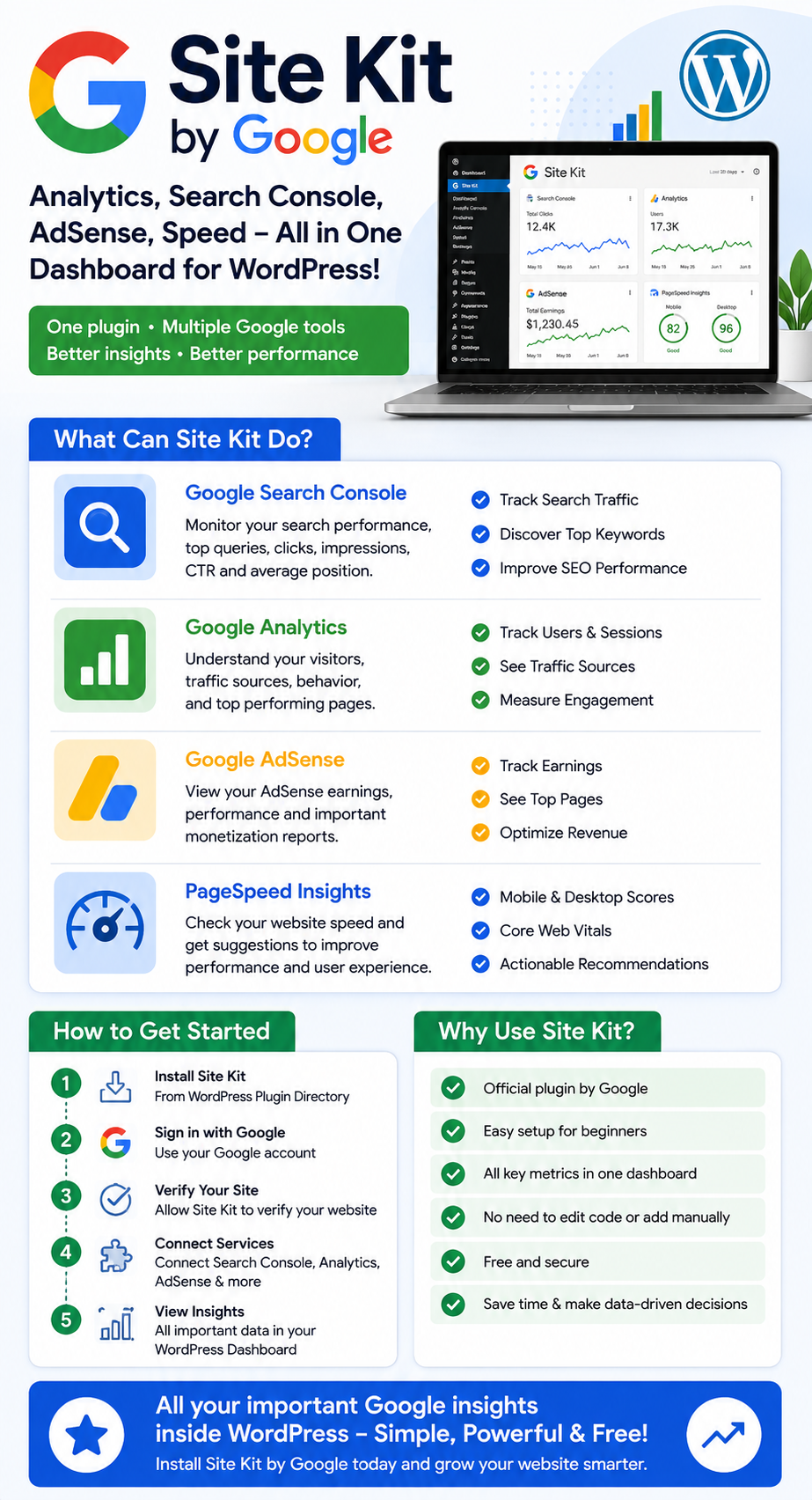
Site Kit by Google is a WordPress plugin that allows website owners to connect and view data from Google’s website tools inside the WordPress admin area.
Instead of manually adding several tracking codes or switching between different Google websites, Site Kit provides a central dashboard for important website information.
For example, you can use it to:
- Monitor Google Search traffic
- Check website visitors
- View popular pages
- Monitor AdSense earnings
- Check website performance
- Review Core Web Vitals information
- Connect Google Tag Manager
- Monitor Google Ads information
- Understand how visitors discover and use your website
Google describes Site Kit as its official WordPress plugin for getting insights about how people find and use a website and how the website can be improved or monetized.
Why Should You Use Site Kit?
Managing multiple Google services separately can become confusing, especially for WordPress beginners.
Site Kit simplifies the process by placing important information inside WordPress.
1. One Dashboard
You can see important information from several Google products without constantly switching between websites.
2. No Manual Tracking-Code Editing
For supported services, Site Kit can handle the required code placement through its integration instead of requiring beginners to edit WordPress theme files manually.
3. Search Performance Information
Search Console data can help you understand search impressions, clicks, queries, click-through rate, and average position.
4. Visitor Analytics
When Google Analytics is connected, Site Kit can display information about how visitors interact with your website.
5. AdSense Monitoring
Website owners who use Google AdSense can view relevant earning information through the Site Kit dashboard.
6. Website Speed Information
Site Kit integrates PageSpeed Insights so you can review performance information and optimization recommendations.
Main Google Services Available in Site Kit
Site Kit supports several Google services. The most important ones for beginners are the following.
Google Search Console
Search Console helps you understand how your website performs in Google Search.
Through Site Kit, you can see information such as:
- Search clicks
- Search impressions
- Search queries
- Average position
- Click-through rate
- Top-performing pages
Search Console is connected during the Site Kit setup process and is a core part of the plugin.
Example: If you publish an article about WordPress plugins, Search Console can help you discover which Google searches are generating impressions and clicks for that article.
Google Analytics
Google Analytics helps you understand what visitors do after arriving at your website.
Depending on your configuration and available data, you can use Analytics to understand:
- Users
- Sessions
- Traffic sources
- Popular content
- Engagement
- User behavior
- Conversions and goals
Site Kit can connect an existing Analytics property or help create one during setup.
Why Analytics Is Important
Search Console mainly helps you understand Google Search performance, while Analytics helps you understand what visitors do on your website.
Using both gives you a broader picture of your website’s performance.
Google AdSense
If you monetize your website with Google AdSense, Site Kit can connect AdSense and display relevant earning information in WordPress.
Site Kit can also help place the AdSense code on your website when configured appropriately. However, your AdSense account and website still need to meet Google’s requirements and receive approval before advertisements can be displayed.
You should never consider Site Kit a guarantee of AdSense approval. Approval depends on Google’s AdSense policies and review process.
PageSpeed Insights
PageSpeed Insights evaluates webpage performance and provides recommendations for improvement.
Site Kit can display PageSpeed Insights information directly inside the WordPress dashboard.
You can use this information to investigate areas such as:
- Loading performance
- Mobile performance
- Desktop performance
- Core Web Vitals
- Performance opportunities
- Technical optimization recommendations
PageSpeed Insights provides performance reports and recommendations designed to help improve page speed and user experience.
Site Kit Installation Requirements
Before installing Site Kit, make sure your website meets its basic requirements.
Google currently lists requirements including:
- WordPress 5.2 or newer
- PHP 7.4 or newer
- A modern web browser
- A publicly accessible website
- Working WordPress REST API
- A website that is not blocked behind maintenance mode, password protection, or similar restrictions
For a normal live WordPress website, installation is usually straightforward.
How to Install Site Kit by Google in WordPress
Step 1: Log In to WordPress
First, log in to your WordPress administrator dashboard.
Usually, your WordPress dashboard is available through your site’s standard WordPress login address.
After logging in, you will see the WordPress administration menu.
Screenshot Guide:
Screenshot 1 — WordPress Dashboard showing the Plugins menu.
Step 2: Open Plugins → Add New
From the WordPress dashboard:
- Click Plugins
- Select Add New Plugin
- Search for Site Kit by Google
- Find the official plugin published by Google
The official WordPress plugin is named Site Kit by Google – Analytics, Search Console, AdSense, Speed.
Screenshot Guide:
Screenshot 2 — WordPress Plugin search page with “Site Kit by Google” in the search field.
Step 3: Install the Plugin
Click Install Now.
Wait while WordPress downloads and installs the plugin.
After installation is complete, click Activate.
Google’s official installation instructions follow the same basic process: Plugins → Add New, search for Site Kit, install, and activate.
Screenshot Guide:
Screenshot 3 — Site Kit plugin listing showing the Install Now and Activate buttons.
Step 4: Open Site Kit
After activation, a new Site Kit menu will appear in your WordPress dashboard.
Click:
Site Kit → Dashboard
You should see the Site Kit setup screen.
Screenshot Guide:
Screenshot 4 — Site Kit setup screen inside the WordPress dashboard.
How to Set Up Site Kit
The setup process connects your WordPress website to your Google account.
Step 5: Sign In With Google
Click the Sign in with Google button.
Select the Google account you want to use with your website.
Make sure you choose an account that has the appropriate access to the Google services you plan to connect.
Site Kit uses Google’s authentication and permissions system to establish a connection between your WordPress website and Google services.
Screenshot Guide:
Screenshot 5 — Google account sign-in and permission screen for Site Kit.
Step 6: Verify Your Website
Site Kit needs to verify that you have access to the website.
This verification is important because Search Console and other services can contain website performance information that should not be exposed to unauthorized users.
Follow the verification instructions shown by Site Kit.
Once verification is complete, continue with the setup process.
Step 7: Connect Google Search Console
Search Console is an important part of Site Kit.
If your website is not already connected to Search Console, Site Kit can help create or connect the appropriate Search Console property during setup.
Click Set up when prompted.
After Search Console is connected, Site Kit can begin showing search performance information.
Screenshot Guide:
Screenshot 6 — Search Console connection step in the Site Kit setup wizard.
How to Connect Google Analytics
You can connect Google Analytics during the initial setup or later from the Site Kit settings.
If Analytics is not connected yet:
- Open Site Kit
- Go to Settings
- Select Connect More Services
- Find Analytics
- Click Set up
- Select an existing Analytics account/property or create a new one
- Complete the authorization steps
Google’s documentation confirms that Site Kit can connect an existing Analytics account or property and can also assist with creating one.
Screenshot Guide:
Screenshot 7 — Analytics connection option inside Site Kit.
How to Connect Google AdSense
If you want to monetize your WordPress website, you can connect AdSense.
Go to:
Site Kit → Settings → Connect More Services → AdSense
Then follow the setup instructions.
If you already have an approved AdSense account, Site Kit can connect it to your website. If you do not have an account, Site Kit can help you begin the application process.
Screenshot Guide:
Screenshot 8 — AdSense connection section in Site Kit.
Important AdSense Note
Installing Site Kit does not automatically make a website eligible for AdSense.
You still need to follow Google’s AdSense policies, complete the application process, and wait for Google to review the website.
How to Check Website Speed
Site Kit includes PageSpeed Insights information.
Open:
Site Kit → Dashboard
Look for the Speed or PageSpeed Insights information.
You can also review performance for individual pages.
The PageSpeed Insights integration provides performance information and optimization suggestions without requiring you to manually install PageSpeed tracking code.
Screenshot Guide:
Screenshot 9 — PageSpeed Insights performance information displayed inside Site Kit.
Understanding the Site Kit Dashboard
After connecting your services, the dashboard becomes the central place for monitoring your website.
Depending on your connected services and available data, you may see information about:
Search Traffic
Shows how your website performs in Google Search.
Visitors
Analytics can show how people arrive at and interact with your website.
Popular Content
You can identify pages that attract visitors and search traffic.
Earnings
If AdSense is connected and active, relevant revenue information can be displayed.
Speed
PageSpeed Insights provides performance information and recommendations.
How to Use Site Kit for SEO
Site Kit is not a complete SEO plugin, but its Search Console integration can be extremely useful for SEO work.
For example, you can monitor:
Impressions → Clicks → CTR → Average Position
Suppose an article receives:
- 10,000 impressions
- 250 clicks
- 2.5% CTR
You could investigate the search queries generating impressions and consider whether the article’s title and content match the searcher’s intent.
Site Kit can therefore help you monitor SEO performance, although it does not replace dedicated SEO plugins or a complete SEO strategy.
How to Use Site Kit to Find Popular Content
One useful strategy is to identify articles that already receive traffic.
For example:
- Open the Site Kit dashboard.
- Review your top pages.
- Identify pages receiving search traffic.
- Check their search queries.
- Improve outdated information.
- Add useful internal links.
- Improve titles and headings where appropriate.
- Monitor performance after making changes.
This approach can help you focus your SEO efforts on content that already has potential.
How Site Kit Helps Website Beginners
Site Kit is particularly useful for beginners because many technical Google integrations can be managed from WordPress.
A beginner may otherwise need to:
- Create Google service accounts
- Verify website ownership
- Copy tracking codes
- Edit website files
- Monitor several dashboards
- Compare information manually
Site Kit reduces much of this complexity by bringing supported Google services together.
Google specifically positions Site Kit for everyone from beginners to advanced WordPress users.
Site Kit Permissions and Multiple Administrators
If several people manage a WordPress website, permissions are important.
Google states that WordPress administrators can configure Site Kit and connect Google services. Site Kit also provides dashboard-sharing capabilities so other WordPress users can access certain metrics without independently completing the entire setup process.
For a business website, this can be useful when:
- A website owner manages the account
- An SEO specialist monitors search data
- A content writer checks article performance
- A marketing team reviews traffic
- A developer monitors technical performance
Always give users only the access they actually need.
Common Site Kit Problems and Solutions
1. Site Kit Is Not Showing Data
Newly connected services may need time before information becomes available.
If your dashboard says it is gathering or preparing data, wait and check again later.
Google notes that data can take time to populate after connecting services.
2. Search Console Data Is Missing
Check that:
- The correct Google account is connected.
- Your website is verified.
- Search Console is connected.
- Your website is accessible.
- Your website has had enough time to generate data.
3. Analytics Data Is Not Appearing
Check:
- Analytics is connected.
- The correct property is selected.
- The tracking configuration is working.
- You are viewing the correct website.
- The account has enough recent traffic/data.
4. AdSense Data Is Not Available
Check whether:
- Your AdSense account is approved.
- The correct account is connected.
- Your website is associated with the correct AdSense account.
- AdSense has finished processing the site.
- Your site follows AdSense policies.
5. Site Kit Setup Fails
Check your WordPress Site Health page.
The WordPress REST API is particularly important because Site Kit needs it to communicate with Google services.
Go to:
WordPress Dashboard → Tools → Site Health
Review the status and look for REST API problems.
Is Site Kit by Google Free?
Yes. The Site Kit plugin itself is free and open source. Individual Google services connected through Site Kit may have their own terms or requirements.
For most WordPress website owners, this makes Site Kit a convenient way to start monitoring their website without purchasing an additional analytics dashboard plugin.
Advantages of Site Kit by Google
Pros
- Official Google WordPress plugin
- Free and open source
- Easy beginner-friendly setup
- Connects multiple Google services
- Provides dashboard-based reporting
- Reduces the need for manual code installation
- Useful for SEO monitoring
- Provides PageSpeed Insights information
- Supports AdSense integration
- Useful for agencies and businesses
Limitations to Understand
Site Kit is useful, but it does not replace every Google service’s full dashboard.
For advanced analysis, you may still need to open:
- Google Analytics
- Search Console
- AdSense
- PageSpeed Insights
- Google Tag Manager
- Google Ads
The Site Kit dashboard focuses on useful information inside WordPress, while the individual Google products provide their own complete interfaces and advanced features.
Also remember that Site Kit is an analytics and integration tool, not a complete SEO plugin.
Site Kit vs Separate Google Tools
| Feature | Site Kit | Individual Google Services |
|---|---|---|
| WordPress dashboard | Yes | Usually separate |
| Search Console | Integrated | Full Search Console |
| Analytics | Integrated | Full Analytics |
| AdSense | Integrated | Full AdSense |
| PageSpeed Insights | Integrated | Full PageSpeed Insights |
| Easy setup | Yes | Varies |
| Advanced reports | Limited compared with full tools | Yes |
| Manual dashboard switching | Reduced | Required |
Site Kit is therefore best viewed as a central WordPress dashboard for important Google information, rather than a replacement for the full Google platforms.
Best Practices for Using Site Kit
To get the most value from Site Kit:
1. Connect the Correct Google Account
Use an account that has appropriate ownership or access to your website’s Google services.
2. Monitor Search Performance Regularly
Review impressions, clicks, CTR, and queries to understand your organic search growth.
3. Watch Your Website Speed
Use PageSpeed Insights recommendations as a starting point for performance improvements.
4. Review Your Best Content
Identify pages receiving traffic and improve them over time.
5. Don’t Obsess Over One Metric
Traffic, rankings, revenue, engagement, and speed should be considered together.
6. Keep WordPress Updated
Keep WordPress, your theme, and plugins updated to maintain compatibility and security.
7. Respect Privacy Requirements
If you use Analytics, AdSense, Tag Manager, or other tracking technologies, make sure your website’s privacy and consent practices meet the requirements that apply to your visitors and jurisdiction. Google notes that website owners remain responsible for applicable notice and consent requirements.
Frequently Asked Questions
Is Site Kit by Google necessary for WordPress?
No. It is not mandatory. You can use Google’s services directly, but Site Kit makes it easier to access important information from within WordPress.
Does Site Kit improve Google rankings?
No. Installing Site Kit does not directly improve your rankings. It helps you measure and understand search performance so you can make better SEO decisions.
Does Site Kit replace Google Analytics?
No. Site Kit displays useful Analytics information inside WordPress, while Google Analytics provides the full analytics interface and more advanced reporting.
Does Site Kit replace an SEO plugin?
No. Site Kit is not a complete SEO plugin. It provides performance and search data, while dedicated SEO plugins can provide features such as metadata management, XML sitemaps, schema controls, redirects, and other SEO functions.
Can I use Site Kit with AdSense?
Yes. Site Kit supports Google AdSense integration. Your AdSense account and website still need to meet Google’s requirements and approval process.
Does Site Kit slow down WordPress?
Site Kit is designed to integrate Google services with WordPress, but the effect can vary depending on the website, hosting environment, configuration, and other plugins. If you experience dashboard performance problems, review your hosting resources and plugin configuration.
Final Thoughts
Site Kit by Google is one of the most useful Google integrations for WordPress beginners. It provides a convenient way to connect Search Console, Analytics, AdSense, and PageSpeed Insights and review important information from inside the WordPress dashboard.
For a new website owner, its biggest advantage is simplicity. Instead of manually adding several tracking codes and constantly switching between different Google dashboards, you can manage many essential connections from one WordPress interface.
However, Site Kit should be viewed as a central reporting and integration tool, not a replacement for the full Google platforms or a dedicated SEO plugin.
If you are building a WordPress website and want an easy starting point for monitoring SEO, visitors, monetization, and website performance, Site Kit by Google is worth considering.