
WordPress Account (Step-by-Step)
Difficulty: Beginner
Time Required: 5–10 minutes
Creating a website has never been easier, thanks to WordPress.com. Whether you want to start a personal blog, business website, online portfolio, or eCommerce store, WordPress.com provides an easy-to-use platform that requires no coding knowledge.
With a free WordPress.com account, you can launch your website within a few minutes. As your website grows, you can upgrade to premium plans for additional storage, custom domains, advanced themes, and professional features.
In this guide, you’ll learn how to create a WordPress.com account step by step, complete with screenshot suggestions to help you follow along easily.
What is WordPress.com?
WordPress.com is a hosted website-building platform developed by Automattic. It allows users to create websites and blogs without purchasing separate web hosting or installing WordPress manually.
Unlike WordPress.org, WordPress.com manages your hosting, updates, backups, and security automatically.
Benefits of WordPress.com
- Free to get started
- No coding required
- Free SSL certificate
- Mobile-friendly themes
- Built-in security
- Automatic updates
- Easy website management
- Professional paid plans available
- Custom domain support
Requirements Before Creating an Account
Before starting, make sure you have:
Web browser (Chrome, Edge, Firefox, Safari)
A computer or smartphone
Internet connection
Email address
Step 1: Visit WordPress.com


- Open your web browser.
- Go to https://wordpress.com/
- Click the Get Started or Start your website button.
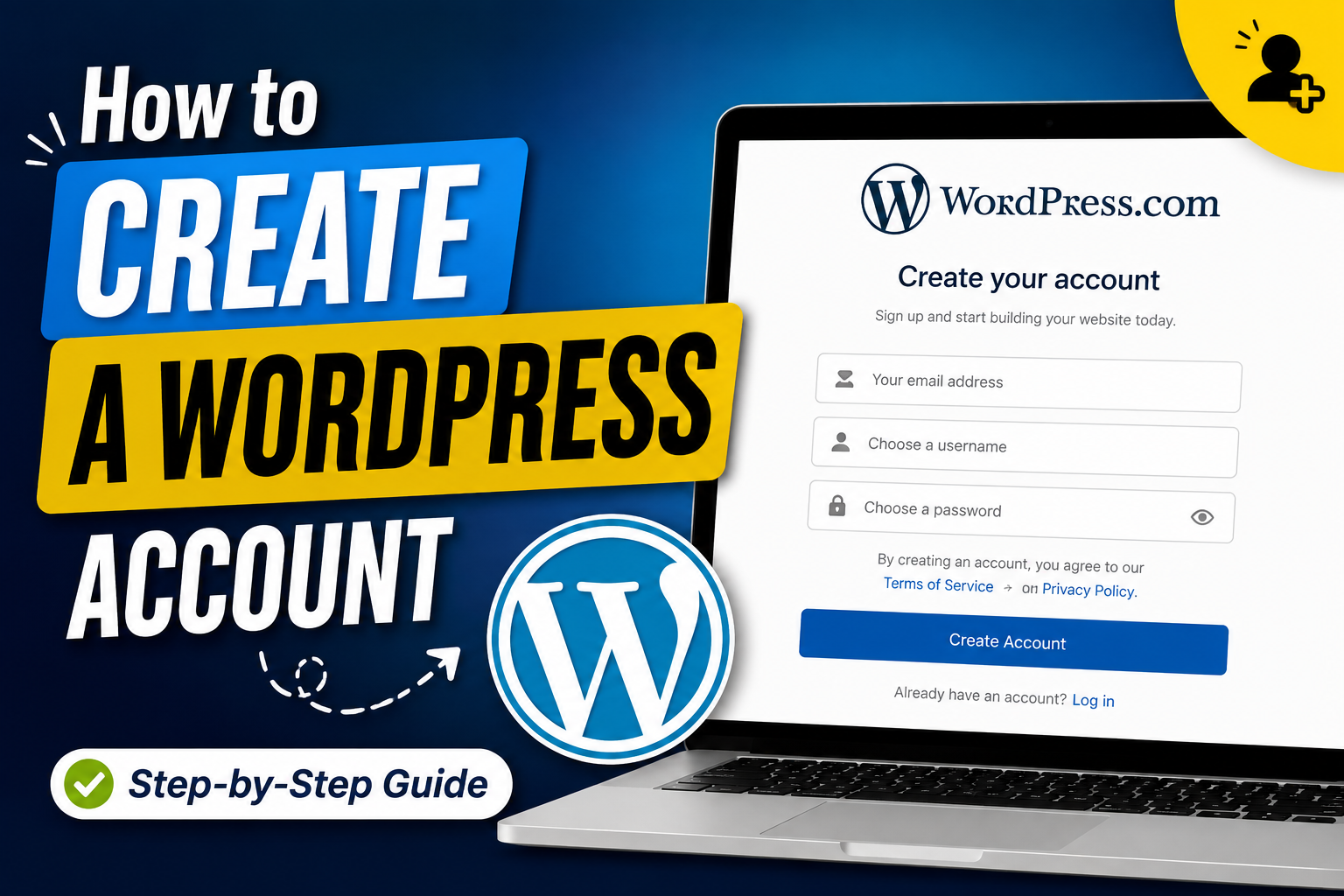
Step 2: Enter Your Email Address


Fill in the following information:
- Email Address
- Username
- Password
Tips:
- Use a valid email address.
- Choose a unique username.
- Create a strong password using letters, numbers, and symbols.
Click Create your account.
Step 3: Verify Your Email


- Open your email inbox.
- Find the email from WordPress.com.
- Click the Verify Email button.
Your account is now activated.
Step 4: Choose Your Website Name


WordPress will ask for:
- Website Name
- Website Category (optional)
Example:
- Website Name: My Travel Blog
Click Continue.
Step 5: Choose a Domain Name


You can choose:
- Free Domain
yourwebsite.wordpress.com
- Custom Domain
yourwebsite.com(Paid)
For beginners, select the Free option.
Step 6: Select a Hosting Plan


You’ll see several plans:
- Free
- Personal
- Premium
- Business
- Commerce
Click Start with Free if you don’t want to pay.
Step 7: Choose a Theme


Browse the available themes.
Click Activate on the theme you like.
Don’t worry—you can change it later.
Step 8: Access Your WordPress Dashboard


After setup, you’ll reach your dashboard where you can:
- Create blog posts
- Add pages
- Upload images
- Install supported features (depending on your plan)
- Customize your website
Congratulations!
Your WordPress.com account is now ready.
Important Settings to Configure
After creating your account, configure these settings:
Site Title
Settings → General
Time Zone
Choose your country.
Site Language
Select your preferred language.
Permalinks
Use SEO-friendly URLs.
Example:
yourwebsite.wordpress.com/sample-postTips for Beginners
- Use a professional username.
- Verify your email immediately.
- Choose a simple website name.
- Install quality themes.
- Publish useful content regularly.
- Add categories and tags.
- Use copyright-free images.
- Keep your password secure.
- Upgrade only when needed.
- Back up important content.
Common Problems and Solutions
Email Not Received
- Check Spam folder.
- Wait a few minutes.
- Request another verification email.
Username Already Taken
Try:
- Adding numbers
- Using initials
- Trying another variation
Domain Unavailable
Try:
- Different spelling
- Another extension
- Shorter name
Can’t Log In
Use the Forgot Password option to reset your password.
WordPress.com vs WordPress.org
| Feature | WordPress.com | WordPress.org |
|---|---|---|
| Hosting Included | Yes | No |
| Free Plan | Yes | No |
| Easy Setup | Yes | Moderate |
| Automatic Updates | Yes | No |
| Full Customization | Limited (Free) | Yes |
| Plugins | Premium Plans | Yes |
| Maintenance | Automatic | Self-managed |
Frequently Asked Questions (FAQs)
Is WordPress.com free?
Yes. WordPress.com offers a free plan with a WordPress-branded subdomain and basic features.
Can I upgrade later?
Yes. You can upgrade to Personal, Premium, Business, or Commerce plans whenever you need additional features.
Do I need coding skills?
No. WordPress.com is designed for beginners and does not require coding knowledge.
Can I connect a custom domain?
Yes. You can purchase or connect a custom domain through WordPress.com on eligible plans.
Can I create a business website?
Absolutely. WordPress.com supports business websites, portfolios, blogs, and online stores.
Final Thoughts
Creating a WordPress.com account is one of the easiest ways to build a professional website or blog. The platform handles hosting, security, updates, and maintenance, allowing you to focus on creating valuable content. Whether you’re a student, freelancer, entrepreneur, or business owner, WordPress.com offers an excellent starting point with room to grow as your website evolves.
By following the steps in this guide, you can set up your account, choose a theme, publish your first post, and begin building your online presence in just a few minutes.