

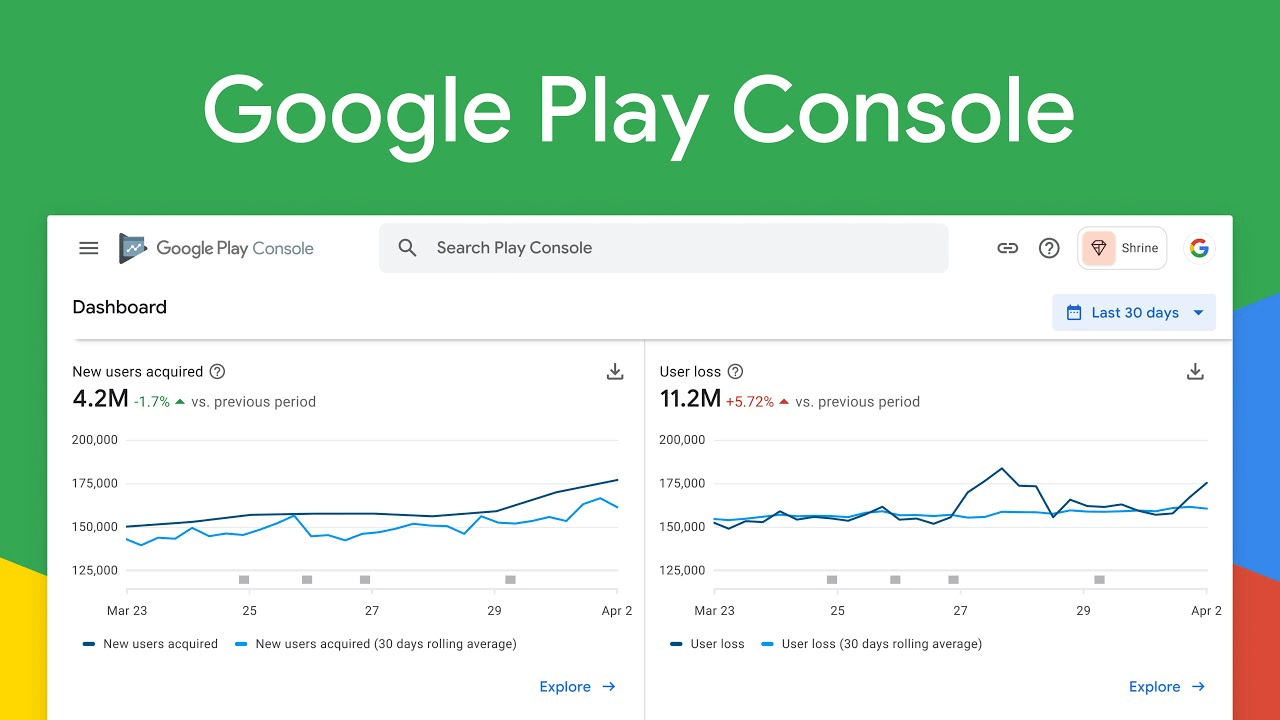
Google Play Console – Introduction
Google Play Console is the official platform provided by Google that allows developers and businesses to publish, manage, and grow Android applications on the Google Play Store. It serves as a complete dashboard where developers can upload apps, release updates, monitor performance, track downloads, manage user reviews, and generate revenue through paid apps or in-app purchases.
Whether you are an independent developer, a startup, or a large company, Google Play Console provides all the tools needed to distribute Android apps to millions of users worldwide. The platform also offers detailed analytics, crash reports, testing options, and security features to help developers improve app quality and user experience.
Before you can publish an Android app on the Google Play Store, you must create a Google Play Console developer account. Registration requires a Google account, identity verification (where applicable), and a one-time registration fee. Once your account is approved, you can create app listings, upload APK or AAB files, set pricing and availability, and submit your apps for Google’s review process.
Requirements Before Creating a Google Play Console Account
Before you begin, make sure you have:
- A Google (Gmail) account.
- A valid phone number.
- A government-issued ID (required for identity verification in many cases).
- A credit/debit card or another supported payment method.
- Business information (if registering as an organization).
Step 1: Visit Google Play Console
Open your web browser and go to:
Open your web browser and go to the Google Play Console website.
Website: https://play.google.com/console
Click Get Started or Sign In.


Step 2: Sign in with Your Google Account
- Enter your Gmail address.
- Enter your password.
- Complete two-factor authentication if prompted.


Step 3: Accept the Google Play Developer Agreement
After signing in:
- Read the Developer Distribution Agreement.
- Check the agreement box.
- Click Continue.


Step 4: Pay the One-Time Registration Fee
To create a Google Play Console account, you’ll need to pay a one-time USD $25 registration fee.
- Click Pay Registration Fee.
- Enter your payment details.
- Complete the transaction.


Step 5: Complete Your Developer Profile
Fill in your developer information:
- Developer name
- Email address
- Phone number
- Website (optional)
- Physical address (required in many cases)


Step 6: Verify Your Identity (If Requested)
Google may ask you to verify your identity.
This can include:
- Government-issued ID
- Phone verification
- Business verification (for organizations)


Step 7: Access Your Google Play Console Dashboard
After verification and payment are complete, you’ll see the Google Play Console dashboard.
From here, you can:
- Create apps
- Manage releases
- View analytics
- Manage testers
- Monitor reviews and ratings


Account Setup Checklist
✅ Google account (Gmail)
✅ Visit Google Play Console
✅ Accept the Developer Agreement
✅ Pay the one-time $25 USD registration fee
✅ Complete your developer profile
✅ Complete identity verification (if required)
✅ Access your developer dashboard
Features of Google Play Console
Google Play Console includes many powerful tools:
- App publishing
- Android App Bundle support
- Internal, Closed, and Open testing
- App signing by Google Play
- Crash reporting
- Android Vitals
- Revenue reports
- User acquisition reports
- Store listing optimization
- In-app purchases
- Subscription management
- Release management
- Country-wise app availability
- Content rating management
- Policy compliance tools
Tips for New Developers
- Use your real legal information during registration.
- Complete identity verification promptly.
- Keep your contact information updated.
- Enable two-factor authentication on your Google account.
- Carefully review Google Play policies before publishing your app.
- Test your app thoroughly before releasing it to the public.
Frequently Asked Questions (FAQs)
Is Google Play Console free?
No. A one-time registration fee is required to create a developer account.
Can I publish unlimited apps?
Yes, once your developer account is approved, you can publish multiple apps as long as they comply with Google Play policies.
Can I create a developer account without a business?
Yes. You can register as an Individual developer.
Do I need a website?
No. A website is optional, though it can improve your developer profile.
How long does approval take?
Approval time varies depending on identity verification and account review. Some accounts are approved quickly, while others may require additional verification.
Conclusion
Creating a Google Play Console account is the first step toward publishing Android apps on the Google Play Store. After registering, verifying your identity, and completing your developer profile, you can upload apps, manage releases, analyze performance, and reach millions of Android users worldwide. Be sure to follow Google Play’s developer policies and keep your account information accurate to ensure a smooth publishing experience.


